How to Preview Your Next Transition While the Set Keeps Playing
Every DJ knows the moment: the next track is lined up, the outro is coming, and you won't really know how the blend sounds until everyone hears it at the same time as you.
Headphone cueing was invented to fix that, but it only half does. You can hear the next track on its own. What you can't hear is the transition: both tracks together, with the EQ swap and the fades, exactly as they'll come out of the speakers.
That's what monitoring does in Blendline. While the set plays to the room, you can play the next transition in your headphones, in time with the set, change it, and play it again, as many times as you need before it arrives.
Why hearing the transition matters more than hearing the track
When you cue a track on its own you're checking two things: that it's the right track, and where it starts. The questions that decide whether a mix works are different:
- Do the two basslines fight while they overlap?
- Is the incoming track's key clashing with the outgoing one?
- Does the vocal of one land on top of the vocal of the other?
- Is the overlap long enough to feel like a blend, or so long it turns to mud?
You only answer those by hearing both tracks at once. On decks you do that by ear, live, with one chance. In Blendline the transition is already laid out on the timeline, so you can audition it before it happens.
1. Choose a monitor output
Open Settings → Audio and pick your headphones in Monitor Output. It has to be a different device (or different channels of the same interface) from the Main output that feeds the speakers.
2. Line up the next track, while the set plays
Drag the track you want next onto the timeline, after the one that's playing. Blendline places it with a phrase-aligned transition straight away: the overlap starts on a phrase, and the lows swap from one track to the other inside it.
You can also find it with track search and press Add, or ↩.
3. Preview the transition in your headphones
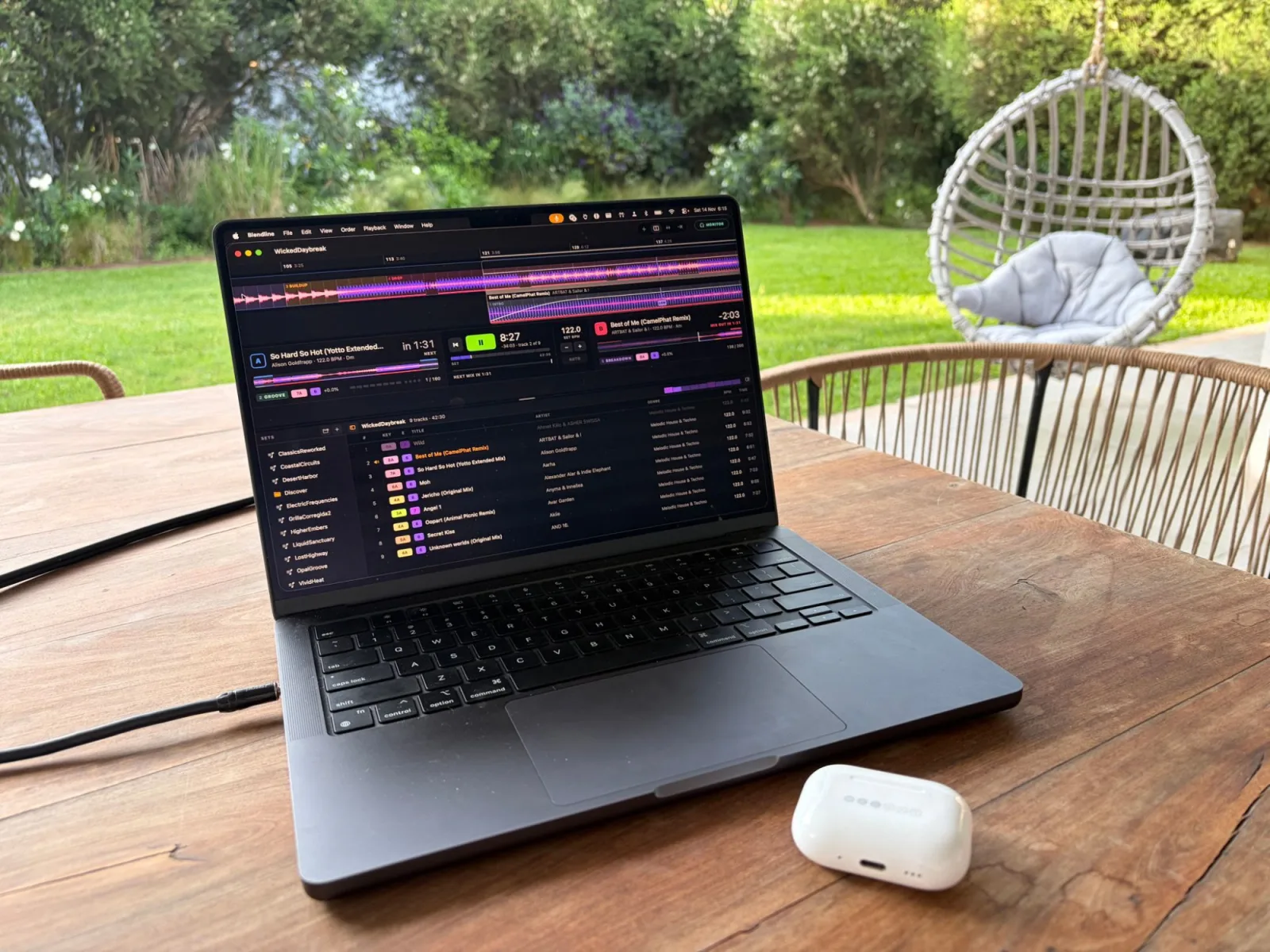
Select the incoming track and press Preview (the headphones button) in the transition inspector. Blendline plays the transition on the monitor output from where the incoming track comes in, in time with the set, and turns monitor mode on. The room keeps hearing the set; you hear what's coming.
Press Preview again to start it over.
4. Fix what you heard
Didn't like it? Change it and listen again:
- Mix in: where the overlap starts, in phrase steps.
- Length: how many bars both tracks play together.
- Fade in and Fade out: how gently each track comes and goes.
- Swap: when the lows, mids or highs switch from one track to the other. Turn a band's swap off to let both tracks play it through.
- Cue in and Cue out: where the incoming track starts and where the outgoing one ends.
Each change is in place right away, so the next Preview already plays it. When you've gone too far, Reset Transition goes back to the automatic one.
5. Monitor mode: a second playhead that's only yours
Press M to turn on Monitor Mode. Play, pause and clicks on the ruler now move a second playhead that only plays on the monitor output, in time with the set, while the set goes on. Use it to jump to any bar of the set and listen ahead: a breakdown three tracks from now, the drop you're saving for later, or whether that long intro is too long.
6. Let it play
When the set reaches the transition, it plays exactly as you last heard it. No need to reproduce it by hand under pressure: you rehearsed it in your headphones a minute ago.
Tips
- Preview early. The best time to audition a transition is right after the previous one has finished, when you have a whole track's worth of time.
- Trust the swap. Most muddy blends are two basslines at once. Move the low swap before you shorten the overlap.
- Check the key. If the blend sounds off and the levels are fine, it's probably a key clash.
- Wired or Bluetooth, your choice. Wired headphones on your Mac or an audio interface are the usual pick in a booth, and Bluetooth headphones such as AirPods are an option too: Blendline keeps the tracks in time for you, so the monitor is for deciding, not for beatmatching by ear, and their latency doesn't get in the way. Unlike apps that follow the Mac's default output, connecting or disconnecting them never stops the set, moves it to another output or changes it in any way. The room keeps hearing it exactly as before; while they're away, only the preview in your headphones pauses.